FMS Internal Database Manager Utility
 FMS Internal Database Manager is a CygNet Software utility provided to facilitate management of your CygNet Measurement (FMS) internal database. Use the utility to retrieve records via SQL query statements, and copy and save the results as comma-separated value (.csv) files. The database itself cannot be modified via the SQL statement.
The FMS Internal Database Manager utility file (FmsInternalDatabaseMgr.exe) is stored in the CygNet\Utilities directory on your host server.
You must have proper security authorization to perform these actions. See FMS Security (and ACCESS security event) for information about configuring security access for the internal database.
Disk Space Requirements for Compact/Reindex Actions
Important: In order to compact or reindex a database, you must have as much as twice the size of the original database file available as free disk space on your C:drive. Make sure adequate disk space is available before beginning the Compact or Reindex database maintenance actions.
Installing and Starting FMS Internal Database Manager
Browse to the CygNet\Utilities directory using Windows Explorer and double-click the FMS Internal Database Manager executable (FmsInternalDatabaseMgr.exe). You can also start an application or utility from a command line, if desired.
Using FMS Internal Database Manager
Use the following procedure to utilize the FMS Internal Database Manager utility to access the internal database via SQL queries.
To Use the FMS Internal Database Manager Utility
- On your host server, open the FMS Internal Database Manager utility (CygNet\Utilities\FmsInternalDatabaseMgr.exe).
|
FMS Internal Database Manager |
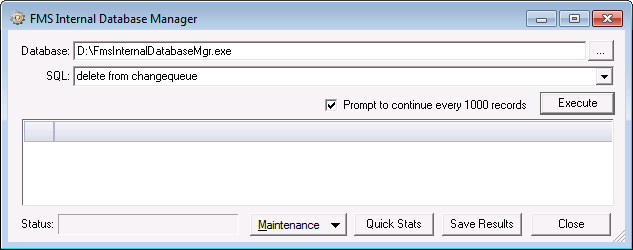
- In the Database text box, type the directory location of your internal database, or click ... to access the Open dialog box to browse to your selection and then click OK.
- To run a database query, do the following.
- In the SQL text box, type your database SQL query string, or click the arrow to select a cached previous query from the drop-down options.
- Click to select/clear the Prompt for break every 1000 rows check box. If selected, you will receive a prompt after the retrieval of each thousand rows of records, asking whether or not to continue retrieving records.
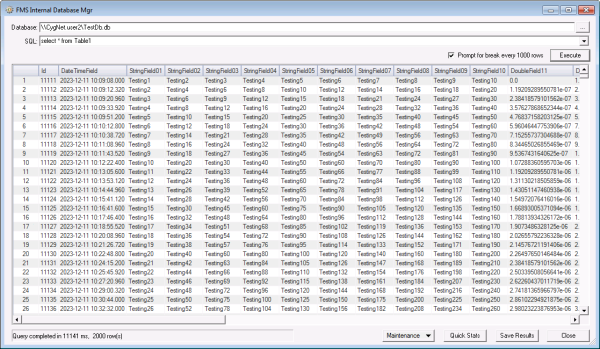
- Click Execute to run the query and view the requested data. Query status will be displayed in the status bar at the bottom left of the dialog box. Query results will be displayed in the data grid. The data grid is not editable.
|
FMS Internal Database Manager |
- To copy an area of the grid to the clipboard, do the following.
- Optionally reposition columns to organize the records as desired for copying query results.
- Click and drag to select the desired data area from the results grid. Then right-click in the selected area to access the context menu and click Copy, or press Ctrl+C, to copy your selection for use elsewhere.
- To save results as a .csv file, click Save Results to access the Save As dialog box. Specify the file location to which to save the query results and then click Save.
- To run either a Compact or Reindex database maintenance task, your system must be prepared for the type of maintenance you will be performing. To proceed, do the following.
- Determine the time period that will be required for your database maintenance task. The Compact operation can take upwards of 1 second per megabyte of your database size to complete. The Reindex operation can take approximately .5 second per megabyte of your database size to complete. These are estimates only; the actual time will be specific to your system and setup conditions.
- Make sure that the FMS associated with your database is offline.
- Once preparations are complete, click Maintenance to access task options for the selected database and then click either Compact or Reindex to perform the selected maintenance task on your FMS internal database.
- Click Quick Stats to display quick statistics about your internal database. Resultant statistics will be displayed, including the values of page and file format properties.
- Click Close to exit the utility.


